On this page
Key takeaways
- You can change a printed QR code only if it is dynamic: edit the destination in your account and save.
- The printed pattern never changes; only where its short link forwards to.
- A static code can’t be edited, but if it links to your own site, a redirect on your site can rescue it.
- Print dynamic codes from the start, and you will never need to reprint because a link changed.
Can you change a QR code after printing?
It depends on the type of code. A dynamic QR code holds a short link that forwards to your destination, so you can change the destination at any time and every printed copy follows. A static QR code holds the destination itself in its pattern, so it can’t be changed. Not sure which you have? Scan it and look at the link your phone shows, or read static vs dynamic QR codes.
Changing a dynamic QR code
Every dynamic QR provider works the same way:
- 1Log in to the account that created the code.
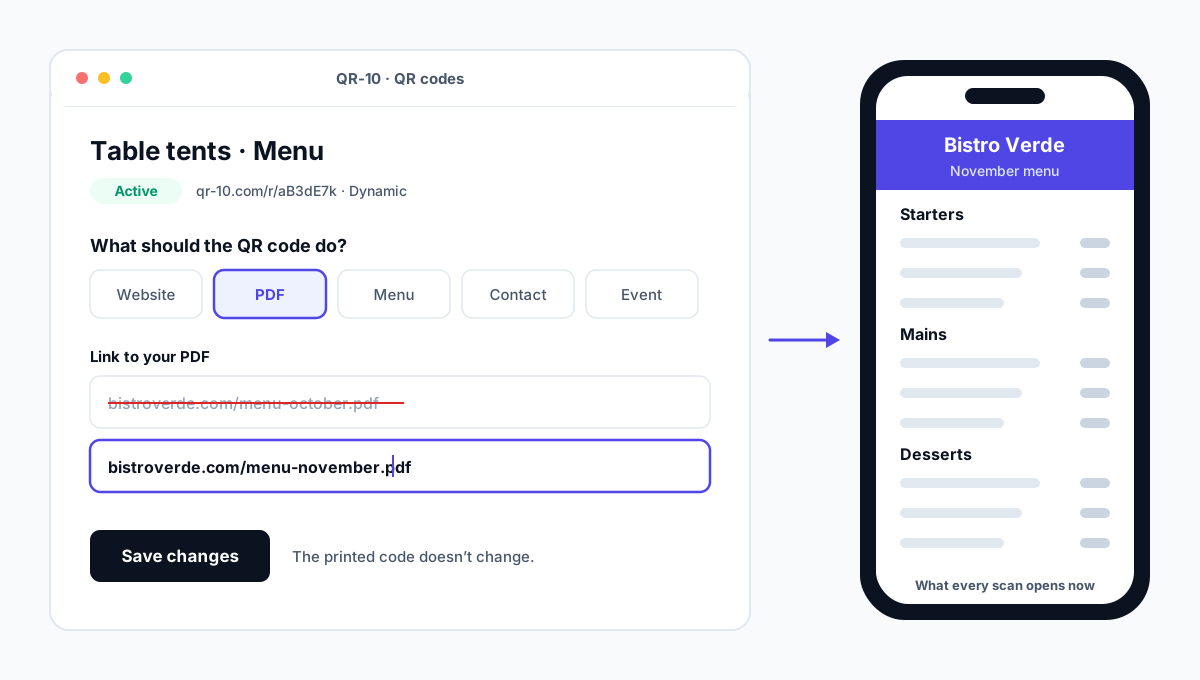
- 2Open the code and edit its destination: a new web page, an updated PDF or menu, new contact details.
- 3Save, then scan the printed code to check it opens the new destination.
The code’s pattern, size and design stay exactly the same, so there is nothing to reprint or redistribute.
Step by step in QR-10
- 1Log in and open QR codes. Search by name or link, or filter by folder.
- 2Click the code you want to change.
- 3Under What should the QR code do?, change the link or content. Dynamic codes can even switch type, for example from a website to a PDF or a menu page.
- 4Click Save changes. The next scan opens the new destination.
| Situation | What to change |
|---|---|
| Menu prices or dishes changed | Upload the new menu PDF or edit the hosted menu |
| Website page moved | Paste the new address |
| Offer or campaign ended | Point it at the next offer, or pause the code |
| New phone number or job title | Edit the contact card |
| Event date moved | Edit the event page |
| Typo in the link | Fix it and save |
Pause instead of delete
If your code is static
The content is printed into the pattern, so no tool can edit it. But you are not always stuck:
It links to your own website
Set up a redirect on your site from the old address to the new page. The printed code keeps opening the old address, and your site forwards visitors on. Ask whoever manages your website for a “301 redirect”.
It links to someone else’s page, or holds text, Wi-Fi or a contact
You need a new code. Create a dynamic QR code you can edit later, then replace the print at the next run, or cover the old code with a sticker in the meantime.
If your code is from another provider
The printed pattern points to that provider’s short link, so only that provider can change where it goes. If you are moving to QR-10:
- 1Create the same code in QR-10 and copy its short link.
- 2While your old account is still active, point the old code at the new QR-10 link.
- 3Printed codes keep working, and scans start appearing in QR-10.
- 4Replace the printed codes with the QR-10 code at your next print run.
If the old provider already switched the code off
Never get stuck again
- Print dynamic codes for anything that lasts: menus, packaging, signs, cards and brochures.
- Choose a provider whose codes don’t expire when a trial or subscription ends.
- Name every code clearly (“Window poster, October”) so you can find it in a year’s time.
- Track scans to see which codes are still in use before you change them. See QR code tracking.